 Shipvo
ⓘ Copyright credits
Music: "Revelation" by Giac & Juan (Jamendo, CC BY-NC-SA 2.0). Source: https://www.jamendo.com/track/116970You will open a shop app on an Android phone and an iPhone in your browser, tap through it, switch the phones to dark mode and large text, set a location and a payment result, watch a signed update reach every phone and roll back after a crash, and share a wall of phones with a link. You install nothing, you make no account and you type no commands.
Level: beginner. Time: about 15 minutes.
New words are explained once, and collected in the glossary.
What you need
- A web browser on a computer or a phone, with JavaScript on.
- Nothing else.
1. Open the playground and add two items
Go to shipvo.dev/playground. The playground is a page where a sample app runs on a simulated phone, so you can try Shipvo before you install it.
Wait for the phone to show a shop called Tide and Tackle with three products: Spinning rod, Tackle box and Tide chart. Tap Add next to two of them.
You should see the line Cart: 2 items under the order note.
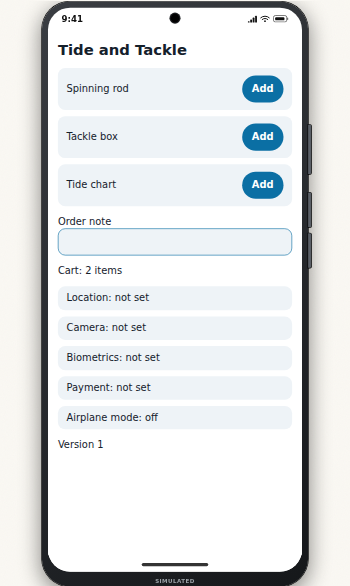
Here is a live phone in this page. It runs the Tide & Tackle sample app, which has a cart screen:
The live phone could not load. Here is a screenshot instead.
If something goes wrong. The phone stays blank: reload the page and check that JavaScript is on. Browser extensions that block scripts can stop the phone from starting. A tap does nothing: wait two seconds and tap again.
2. Switch between Android and iPhone
Above the phone is a bar of buttons. Select iOS. The phone changes to the iPhone look, with a Dynamic Island at the top. Select Android to go back. It is the same app on both.
3. Check dark mode and large text
Select Dark mode, then Large text. The app turns dark and its words get bigger, as they would for a person who uses dark colours or a bigger text size on their phone. Select Right to left to see the layout flip, as it does for Arabic or Hebrew.
You should see the app stay readable. If a button gets cut off or two lines overlap, that is a bug you would have found before your customers did.
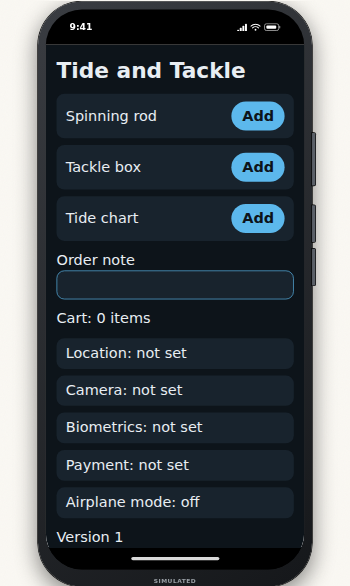
Select each button again to switch it off.
4. Pretend to be a phone with a location and a payment
Real phones know where they are, can take photos and can pay. Your app has to cope with every answer, including "no". The playground lets you choose the answer.
- In the sidebar, select Device API.
- Under Location, select Lisbon.
- Under Payment, select Approve.
- Under Airplane mode, select On.
You should see these lines in the app: Location: Lisbon, Payment: approved and Airplane mode: on, no network. Select Decline under Payment to see Payment: declined.
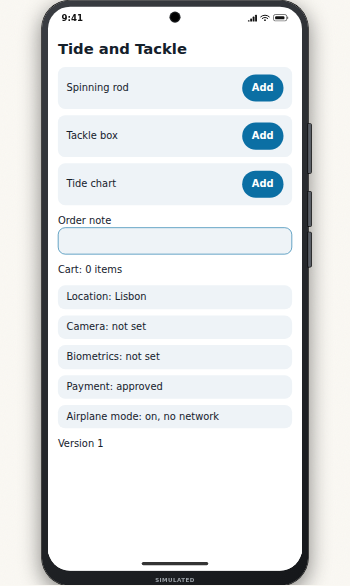
Read more in Device API.
If something goes wrong. A line does not change: select the sidebar entry again and choose the value once more. Each choice only changes its own line.
5. Watch a signed update reach phones and roll back
An over-the-air update sends a new version of your app to phones without a new store release. Shipvo signs every update, and the phone checks the signature before it runs the update.
- In the sidebar, select Signed updates.
- Select the buttons one by one, from left to right: Publish update, Stage to 10%, Widen to 100%, Crash the update, Watch rollback.
After each button, a new line appears below. In our run it said, in order:
- A signature check: valid, and the same release with one field changed: rejected.
- The update goes to 10% of cohorts (100 of 1000), then to all of them (1000 of 1000). A cohort is a slice of your users that gets an update before everyone else.
- The update crashes on three starts in a row (1 of 3, 2 of 3, 3 of 3).
- On the fourth start, the phone goes back to version 1 by itself.
The phone shows Version 2 after you publish and Version 1 again after the rollback.
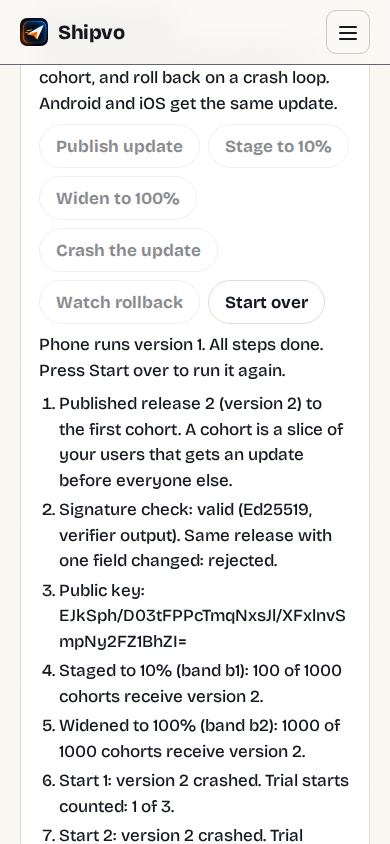
The numbers on this panel come from the real signer, verifier and runtime code, recorded when the site was built. To send an update from your own app, see Ship a fix to your customers' phones, a few at first, and undo it.
Select Start over to run it again.
6. Put many phones side by side and share them
- In the sidebar, select Many phones.
- Set the number of phones (1 to 12) and choose Android, iOS or both.
- Select Copy link and paste it into a message.
Whoever opens the link sees your setup. You can also type the link yourself. This one shows six phones, Android and iOS mixed, in dark mode:
https://shipvo.dev/playground/?phones=6&mix=both&dark=1#many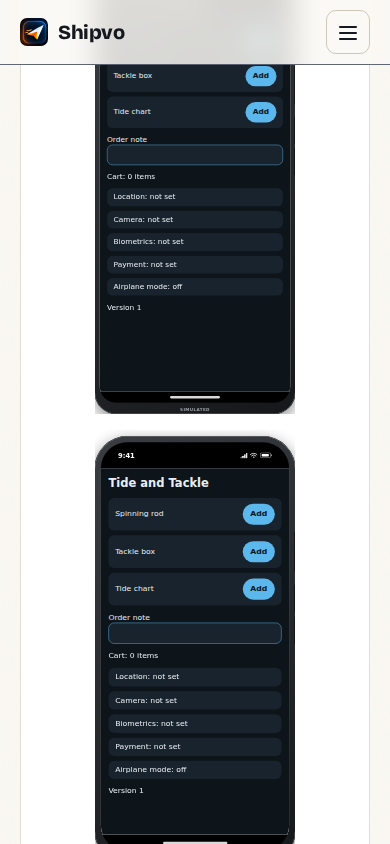
If something goes wrong. The link opens fewer phones than you set: a chat app cut the link after the
?. Paste it as plain text, or use Copy link again.
Recap
You tapped a shop on an Android phone and an iPhone, checked dark mode and large text, chose a location, a payment result and airplane mode, watched a signed update roll out and roll back, and shared a wall of phones. You made no account and installed nothing.
What we measured
On 2026-11-10, on a GitHub Actions Linux runner, we ran every step above in a headless Chromium browser on the site built from this branch, and took every screenshot from that run. The update numbers in step 5 are the ones the page printed in that run.
Next steps
- Create your first app: make your own shop in a few minutes.
- See your app on a phone in your browser: the same kind of phone, running your app.
- Describe an app and watch it appear on a phone
- Playground reference