 Shipvo
You will type three short commands and get two phones side by side in a browser tab: an Android phone that plays white and an iPhone-style phone that plays black. You will make a move on one and watch it appear on the other, then watch a whole game play itself to checkmate. You need no real phone, no Android Studio and no Xcode.
Level: beginner. Time: about 15 minutes, most of it the first install and build.
New words are explained once, and collected in the glossary.
You can also try it without installing anything: shipvo.dev/demos/chess runs the same two phones live.
What you need
- Node, version 22 or newer, and a terminal (how to check).
- Git, to copy Shipvo's code to your computer. Type
git --version. If you see a version number, you have it. - A web browser.
1. Get the code and install it
Type these lines one at a time, pressing Enter after each:
git clone https://github.com/shipvo/shipvo.git
cd shipvo
corepack enable
pnpm install --frozen-lockfile
git clone copies the project into a folder called shipvo. cd shipvo goes into that folder. corepack enable turns on pnpm, the tool that installs the project's parts. The last line downloads them. It can take a few minutes and prints a lot of text. You do not need to read it.
Then build the parts the demo uses:
pnpm --filter @shipvo/schema build
pnpm -r --filter "./packages/**" build
If something goes wrong.
git: command not found: install Git from git-scm.com, close the terminal, open a new one and try again.corepack: command not foundor an old Node: you need Node 22 or newer. Install it from nodejs.org and open a new terminal.- The install stops with a network error: check your connection and type the same line again. It carries on where it stopped.
2. Start the two phones
Type:
pnpm --filter chess demoThe first time, Shipvo builds a web copy of the chess app. This is called a build. You will see lines about "Metro" and "Exported", which is the tool gathering the app's files. When it is ready you should see:
Chess on Android and iOS: http://127.0.0.1:4810/
Press Ctrl+C to stop.
Your browser opens on that address by itself. The number after the last colon will almost always be different on your computer. If no tab opens, copy the address into your browser.
If something goes wrong.
- The port is in use: type
pnpm --filter chess demo -- --port 4810(any free number works).- Nothing opens: open the address from the terminal in your browser yourself. Use
--no-openif you want the address without a tab.- The build stops with an error: type
pnpm -r --filter "./packages/**" buildagain (step 1) and then the demo line.
3. Look at the two phones
You should see two phones. The left one is an Android phone and the right one is an iPhone-style phone. A small label under each says SIMULATED, because they are copies of phones, not real ones. Above each phone is a clock. The text above the left phone says "Android plays white" and above the right phone "iOS plays black".
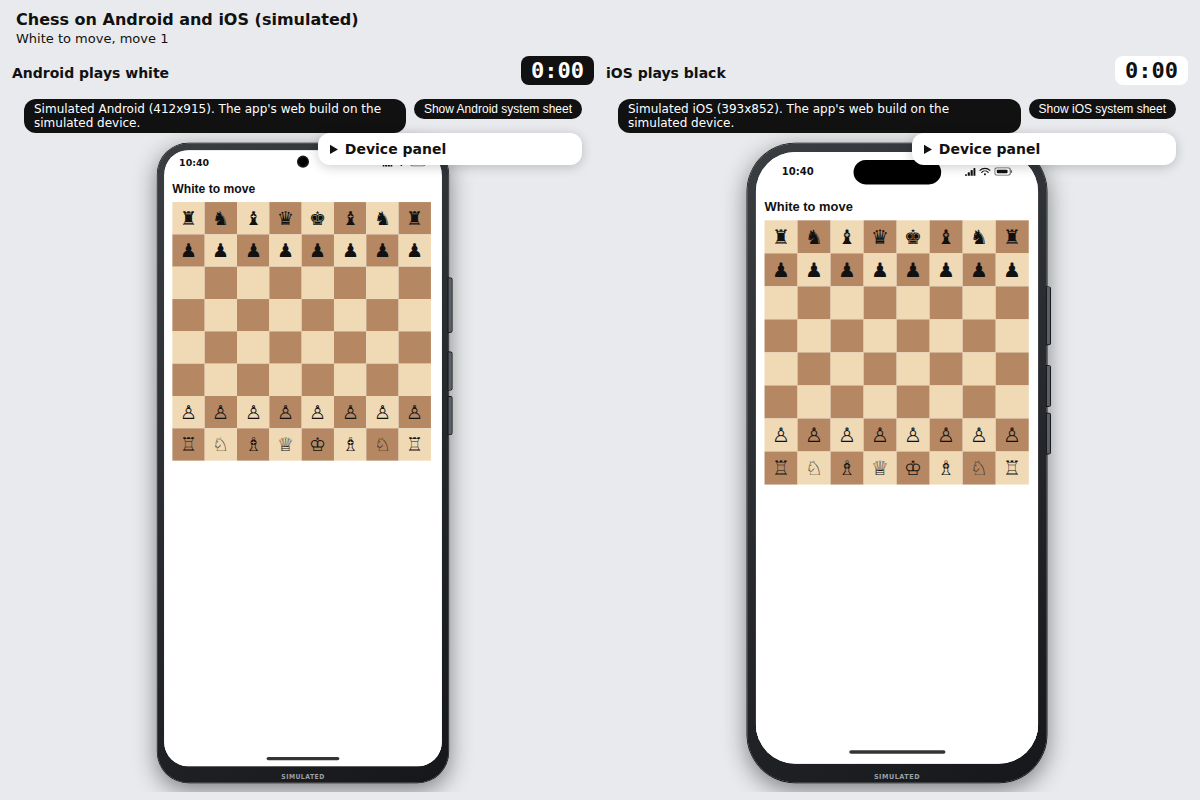
Both phones show the same board. The line at the top of the page says whose turn it is. Each phone is used for its own side: the Android phone for white, the iOS phone for black.
4. Make a move on the Android phone
White moves first, so use the left phone. Click works like a tap.
- Click the white pawn in front of the king (the second row from the bottom, fifth square from the left). The square turns yellow and green dots show where the pawn can go.
- Click the square two ahead of it.
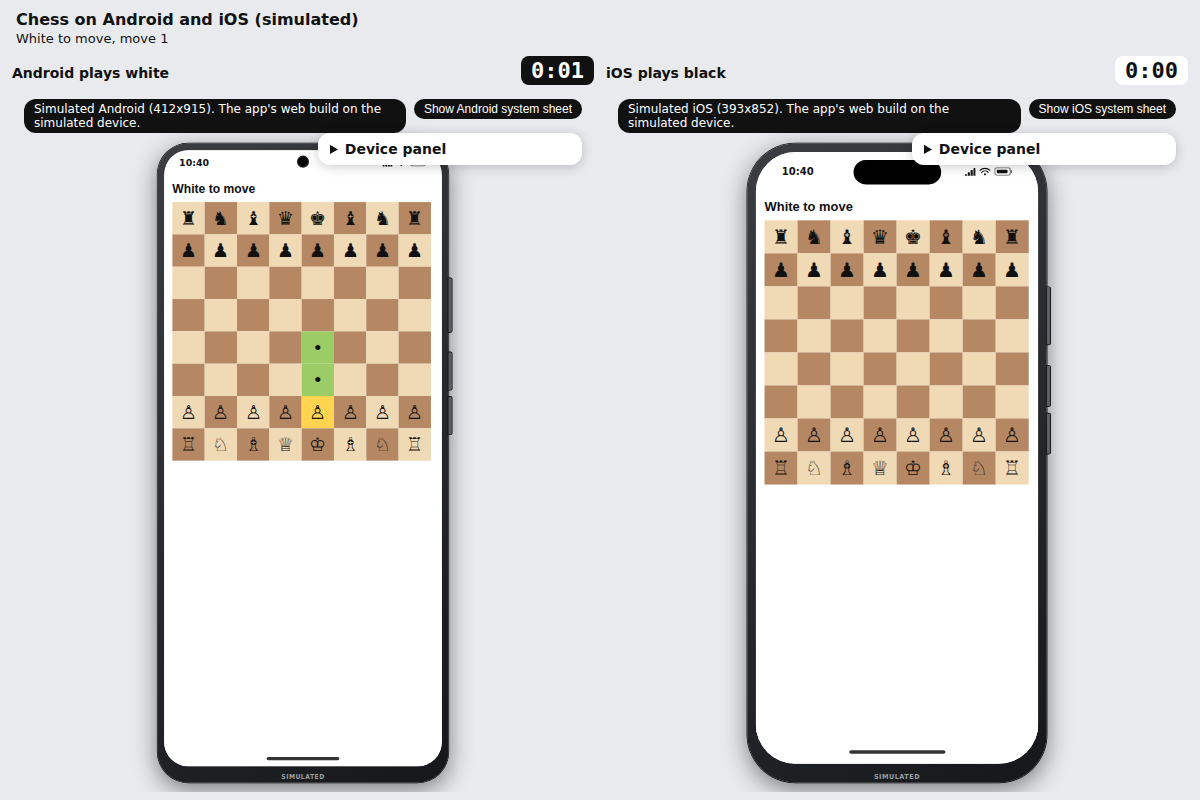
You should see the pawn jump forward on the iOS phone too. The line at the top changes to "Black to move, move 1". The white clock stops and the black clock starts counting up. Under each board a list shows the move: 1. e2e4 means the white pawn went from e2 to e4.
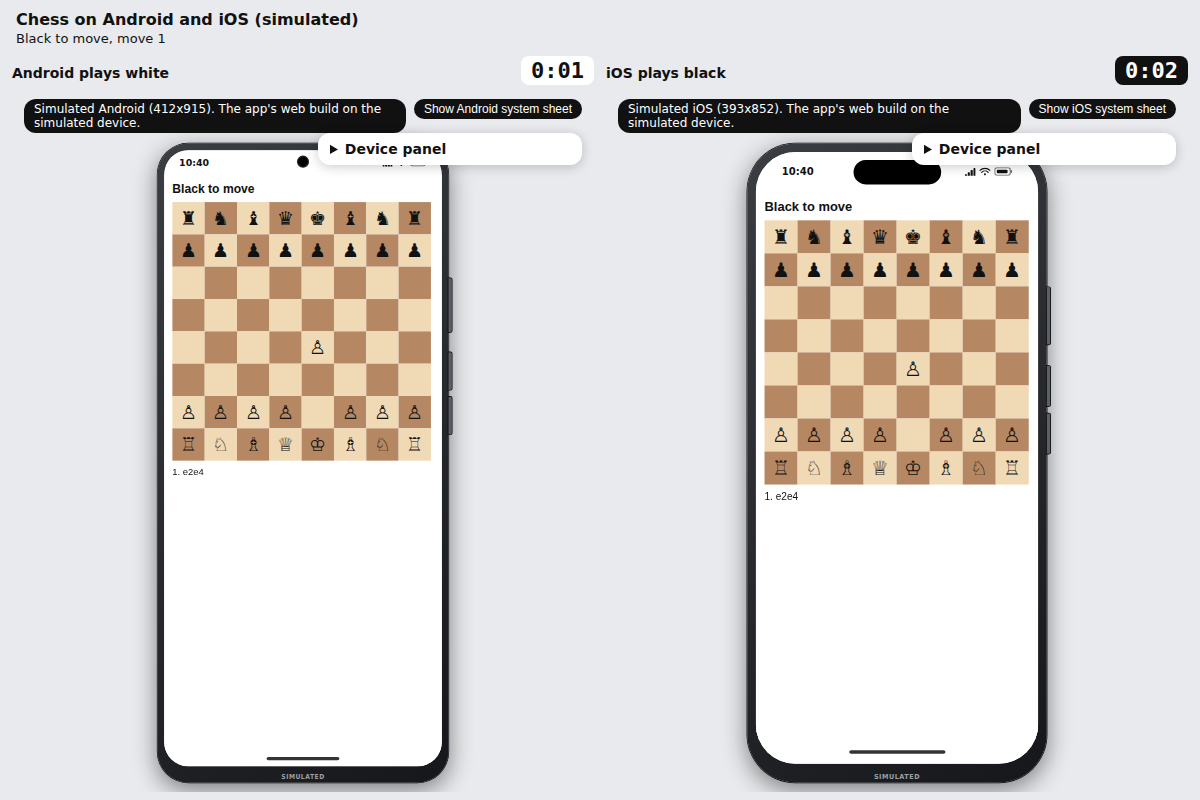
Now, for black, click a black pawn on the right phone and then the square ahead of it. The move shows on the Android phone, and the clocks swap again.
Want to play right now? The live page shipvo.dev/demos/chess has the same two phones: tap a white piece on the Android phone, then a square, and watch the move appear on the iPhone-style phone.
If something goes wrong.
- Clicking does nothing: it may be the other side's turn. Check the line at the top.
- A square you click is not highlighted: pick one of your own pieces first, then the square to move to. An illegal move is ignored.
- The phones stay empty: wait a few seconds, then reload the tab.
5. Watch a full game play itself
Stop the demo with Ctrl+C in the terminal. Start it again with one more word:
pnpm --filter chess demo -- --autoplayBoth phones now play a famous short game, called Légal's mate, by themselves. When it finishes you should see "Checkmate, white wins" on both phones, "Game over after 13 moves" at the top of the page, and both clocks stopped. "13 moves" counts each side's move separately, so white made 7 and black made 6. The clocks only count the time each side spent thinking, so they stay near zero.
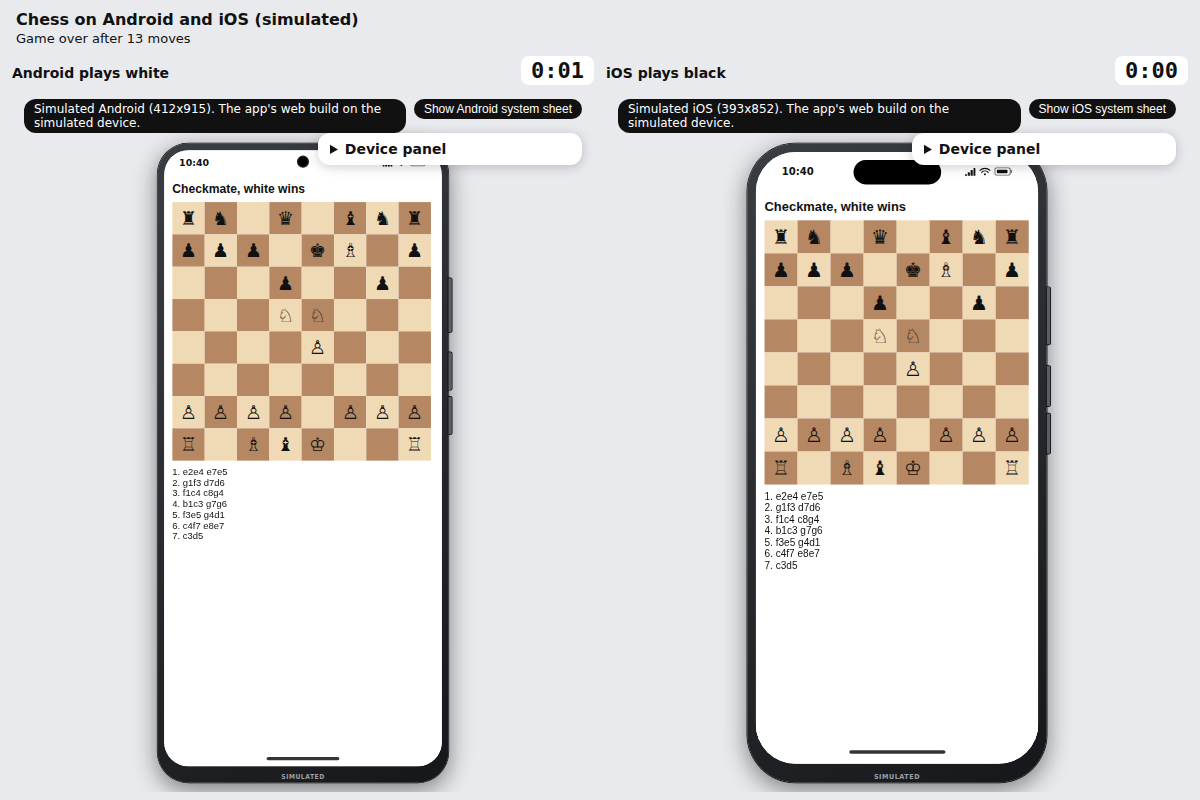
Every move was sent from one phone to the other, the same way it was when you clicked.
If something goes wrong. Nothing moves: reload the tab. The game starts when both phones are ready.
6. Stop it
Click the terminal and press Ctrl+C. Both phones stop.
Recap
- You started an Android phone and an iPhone-style phone in your browser with one command.
- A move on one phone showed on the other, and each side had its own clock.
- You watched a whole game play to checkmate with
--autoplay. - Shipvo's automatic tests play the same game in a browser as part of every check on the code (
apps/chess/test/demo.test.ts).
Next steps
- Every square and piece has a label, such as "white knight on d5". That is what lets an AI assistant read the board and play. See the chess demo page and Chess on two phones.
- Run your own app on a phone in your browser: See your app on a phone in your browser.
- Have an assistant test your app: Have an AI assistant test your shop.