 Shipvo
Prefer to watch first? This 2 minute 7 second video covers the same steps. Captions and transcript.
ⓘ Copyright credits
Music: "and then its all gone" by Williamson (Jamendo, CC BY-SA 3.0). Source: https://www.jamendo.com/track/124446You will run one command, ask Lumi to test your app, read what it found and watch one problem happen again. You need no AI account and you do not write code.
Level: beginner. Time: about 10 minutes, most of it the first build.
New words are explained once, and collected in the glossary.
What you need
- An app made with Shipvo or Expo, in a folder on your computer. If you have none, do Create your first app first.
- Node 22 or newer and a terminal (how to check).
1. Start Lumi
In your terminal, go to your app folder and type:
npx shipvo lumiFor an iPhone-style phone, type npx shipvo lumi ios instead. Android and iOS work the same way.
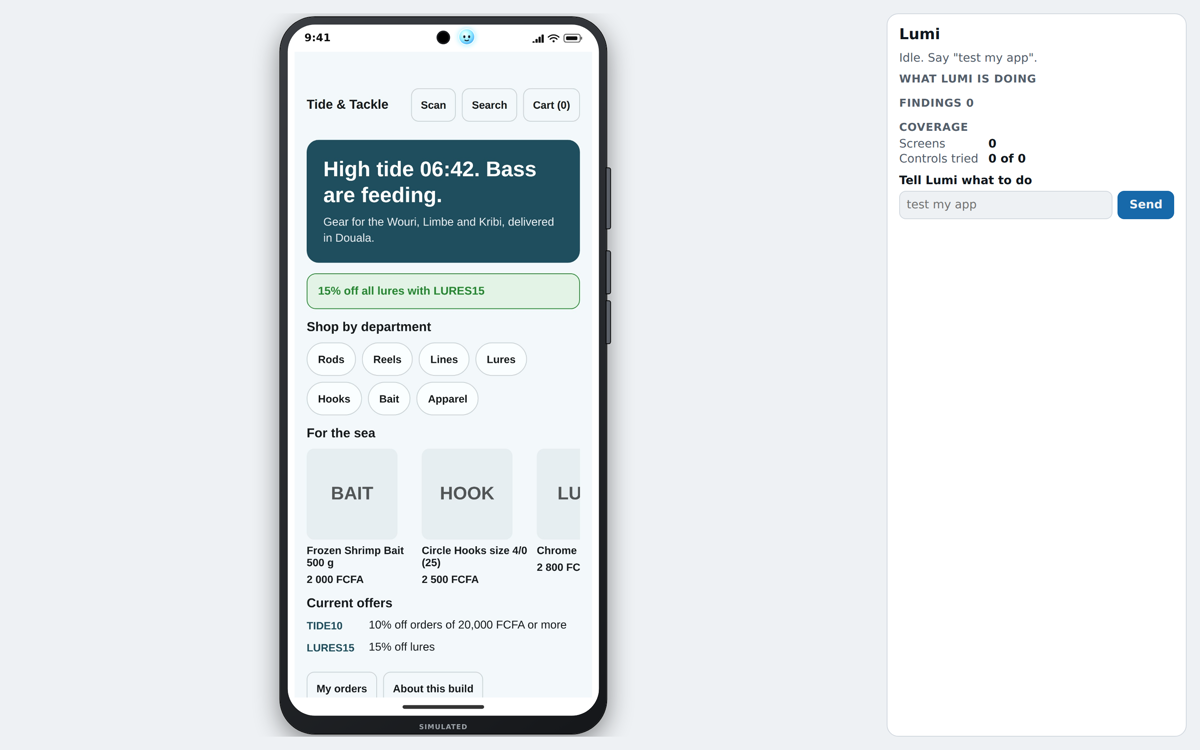
Shipvo builds a web copy of your app. You will see Building <your app> for the simulator…. The first build is the slowest. Your browser then opens with the phone on the left and the Lumi sidebar on the right. On a narrow window the sidebar is below the phone.
If something goes wrong.
- The terminal shows an error from
npx expo export --platform weband names a file: that file uses something that only works inside a phone's own system, such as a camera or Bluetooth module. Ask your assistant to fix it.- It says
Port 4547 is in use. Pass --ui-port <n>.: typenpx shipvo lumi --ui-port 4600.- It says
Port 4546 is in use.: pass--port <n>the same way.
2. Ask Lumi to test your app
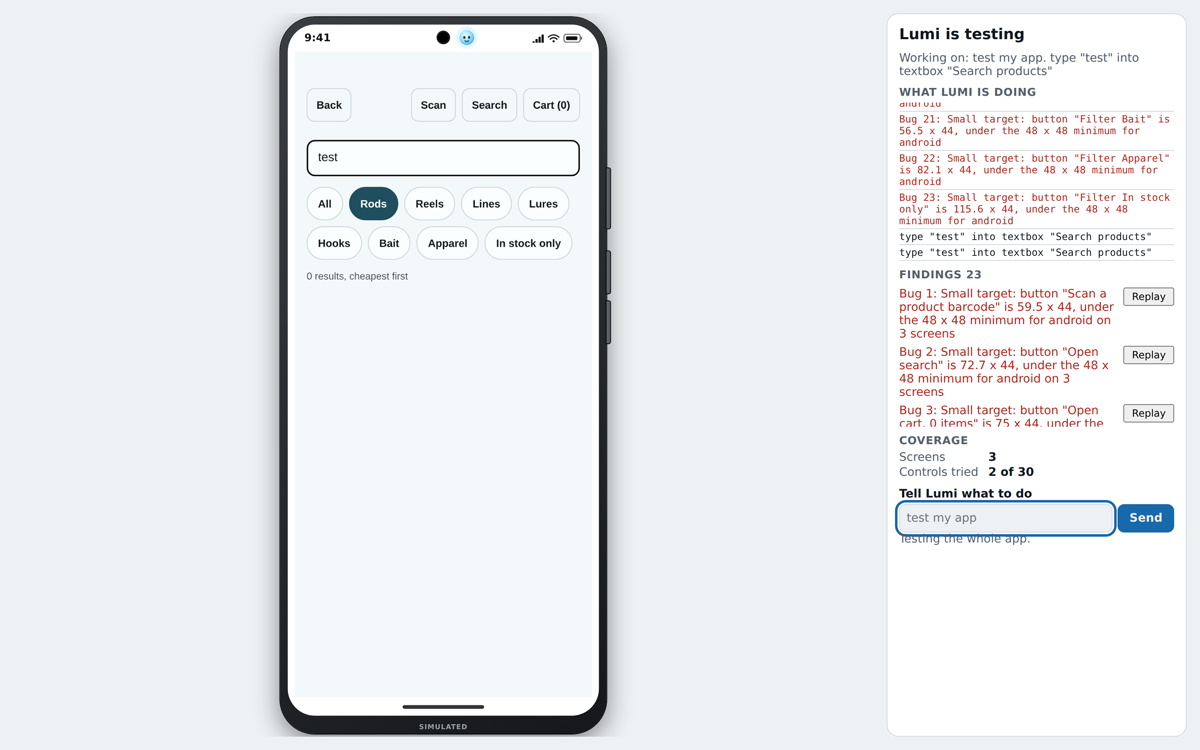
In the box labelled Tell Lumi what to do, type test my app and press Enter. Lumi taps through your app from the start screen. A caption names each step, such as "Tapping Checkout", and the sidebar lists every action.
To test one path, type its everyday name: test checkout, test login or test sign up. Lumi says which path it picked.
3. Read the findings
Look at Findings in the sidebar. Each finding is something Lumi reported, such as a button that does nothing, a screen that stays blank or a network call that fails. Each problem is listed once. Coverage shows how many screens and controls Lumi tried.
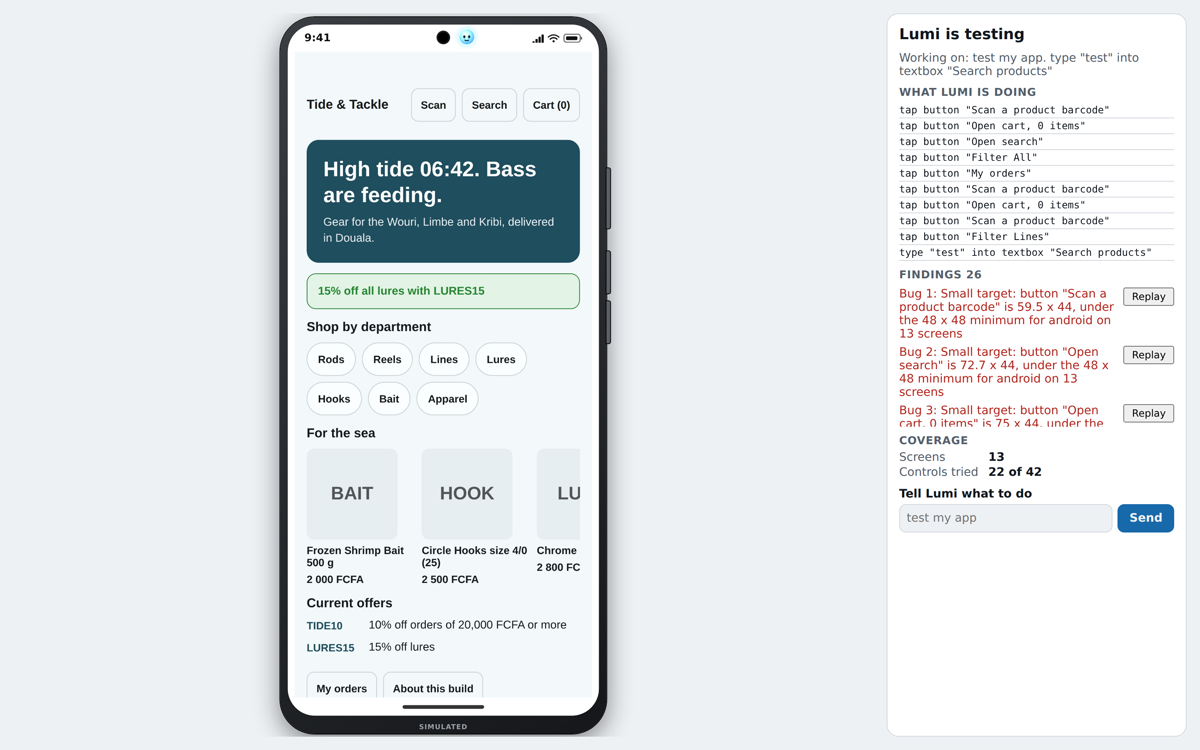
This screenshot is a run on the sample app, taken while Lumi was still testing, so the coverage numbers are mid-run. We did not check each of its findings by hand, so read them as things to look at, not as confirmed bugs. The numbers under "What we measured" come from the benchmark apps (Lumi benchmark).
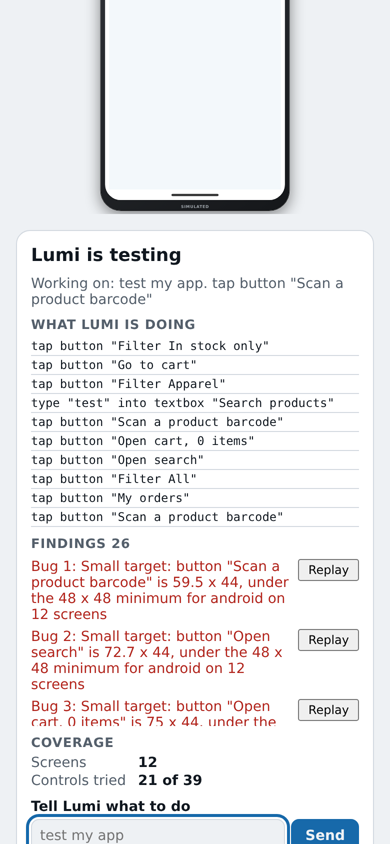
On a phone-width window the sidebar sits below the phone:
4. Watch a problem happen again
Press Replay next to a finding. The phone repeats the steps that led to it. You can also type replay bug 1.
5. Try bad input
Type try checkout with bad input. Lumi runs the same path with invalid values in the text fields. A finding here means your app accepted something it should have refused.
6. Make a run repeat
Stop Lumi with Ctrl+C in the terminal, then start it with a seed:
npx shipvo lumi --seed 1The same seed gives the same walk, so you can check that a fix worked.
What we measured
On the benchmark apps in this repository, with seed 1 and a budget of 200 steps, Lumi found 3 of 3 planted bugs in each app and reached 5 screens in shop and 8 in account. The command, the date and the full table are in Lumi benchmark results.
Next steps
- Lumi on Shipvo Phone: every command and option
- Test with an AI assistant