 Shipvo
ⓘ Copyright credits
Music: "Calling for the Blue Dusk" by Régis V. Gronoff (Jamendo, CC BY-NC-SA 3.0). Source: https://www.jamendo.com/track/343780You will tell an AI assistant, in plain words, what small app you want. A few seconds later the app is on a simulated phone in your browser, with its own icon. You will see it on an Android phone and on an iOS phone. You will use it, ask for a change and see the change appear with your entries still in place. You write no code and you need no real phone.
Level: beginner. Time: a short first-time setup, then a few minutes of talking to your assistant.
New words are explained once, and collected in the glossary.
What you need
- Node, version 22 or newer, and a terminal (how to check). A terminal is a window where you type commands.
- An assistant that supports MCP: Claude Desktop, Claude Code or Cursor. MCP is the plug that lets an assistant use tools such as the Shipvo phone.
- A web browser.
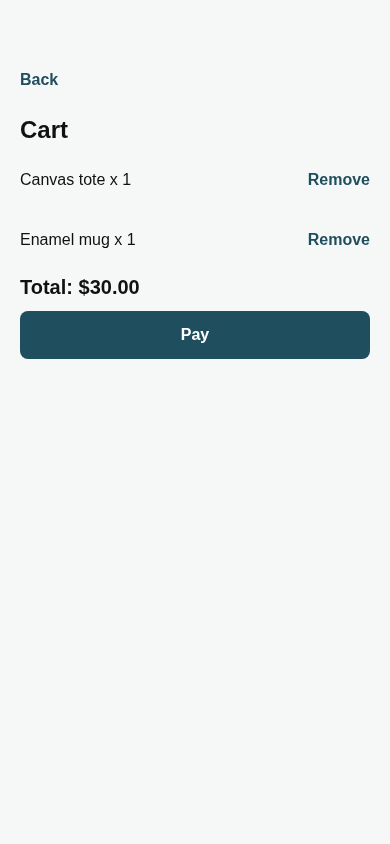
Here is what you are about to see. The phone below is the Tide & Tackle sample shop. In a moment your assistant will put a different app on a phone just like it.
The live phone could not load. Here is a screenshot instead.
1. Make a starter app and start the simulator
The simulator is a copy of a phone that runs on your computer and opens in your browser. It needs a project folder to start from. Type these lines one at a time and press Enter after each. The name after init is your folder.
npx -y @shipvo/cli init gifts --template shop --name "Gift shop"
cd gifts
npm install
npx playwright install chromium
npm run sim
Wait for these lines, and leave this window open:
Shipvo UI simulator on http://localhost:4545 (sessions in /tmp/pn-ui)
Simulator on http://localhost:4545/app/  (open_app("gifts") from @shipvo/mcp; Ctrl-C to stop)
Watch the agent: http://localhost:4545/watch
Open a second terminal window and go to the same folder with cd gifts for the next step.
If something goes wrong.
node: command not found, or a version below 22: install Node 22 from nodejs.org and open a new terminal.- The simulator says port 4545 is in use: run
npm run sim -- --port 4600and use4600in every address below.- It says Chromium is missing: run
npx playwright install chromiumagain.
2. Connect your assistant
In the second terminal window, type:
npx shipvo agents setupThis writes the connection for each assistant it finds in your folder. Close your assistant completely and open it again so it reads the new setting. Then ask it: "Which Shipvo tools do you have?" It should list tools such as open_app, create_app and update_app.
If something goes wrong.
- The assistant lists no Shipvo tools: check you restarted it, and that you ran the command inside the
giftsfolder.- Claude Desktop does not read folder settings: see Test with an assistant for its setting.
3. Open the phone window
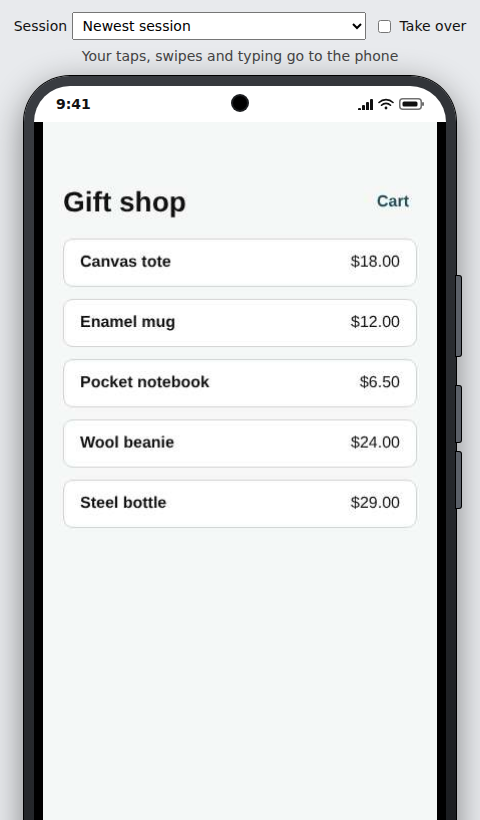
In your browser, go to http://localhost:4545/watch. This page shows the phone your assistant is using. It is empty until the assistant opens a session.
Now paste this into your assistant:
Open my gifts app on the Shipvo simulator as a headless session (attach: "never"), then press home so I can see the home screen.Look at the browser. You should see the phone with the home screen and your Gift shop icon.
If something goes wrong.
- The page says no session: ask the assistant again, then reload the page.
- The assistant says it cannot reach the simulator: check that the first terminal window still shows the three lines from step 1.
4. Describe an app
Now say what you want, in your own words. For example:
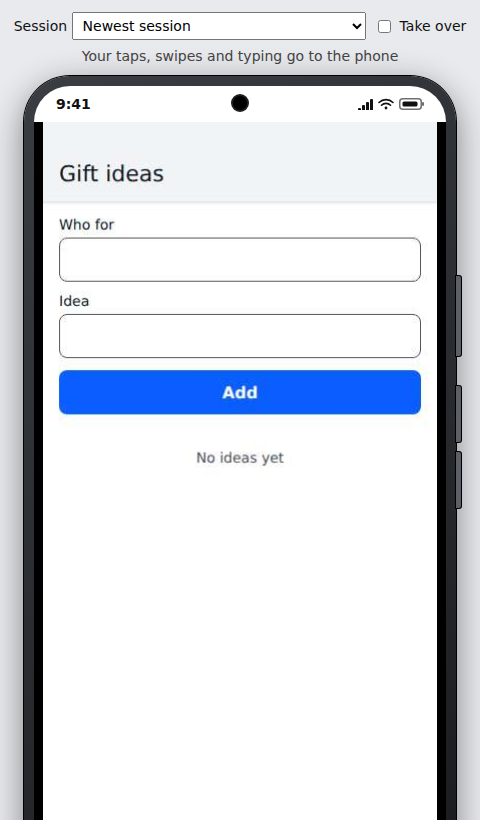
Make a gift ideas app on the phone. I want to write who each idea is for and what the idea is. Show the ideas in a list.Your assistant writes a short description of the app (an app spec) and sends it to the phone. Shipvo checks it first. If it is valid, an icon appears and the app opens. You should see a screen titled "Gift ideas" with two boxes, "Who for" and "Idea", an Add button and the words "No ideas yet".
You do not need to read the spec. Your wording will give a slightly different app from ours. That is fine.
If something goes wrong.
- The assistant says the spec was refused (
invalid_spec): nothing was installed and the phone is as it was. The message lists each problem and how to fix it. Say "Fix those and try again."- The assistant says
bad_app_id: the short name it chose has a capital letter, a space or an underscore. Say "Use an id with lowercase letters and dashes, like gift-ideas."- The assistant says
not_supported_attached: it opened your app on ashipvo runphone. Repeat step 3 and ask for a headless session.
5. Use the app
Ask the assistant to add an idea with the app's own action:
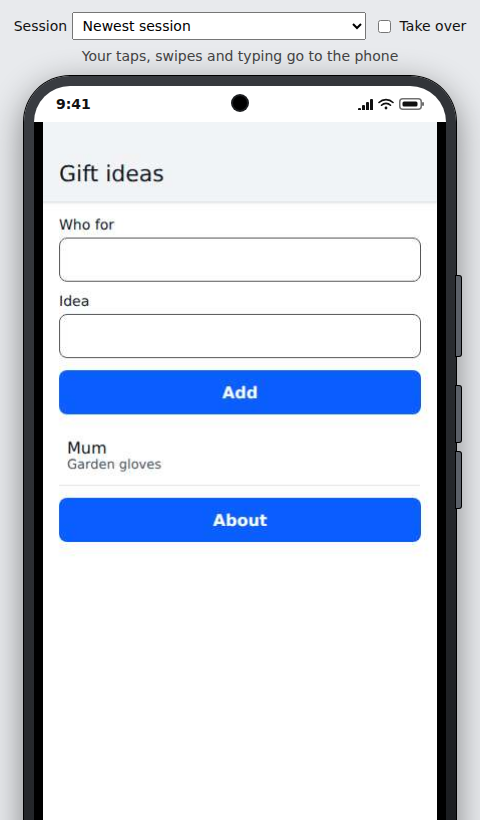
Use run_app_action on the gift-ideas app to run add_idea with person "Mum" and idea "Garden gloves".The list should now show "Mum" with "Garden gloves" under it.
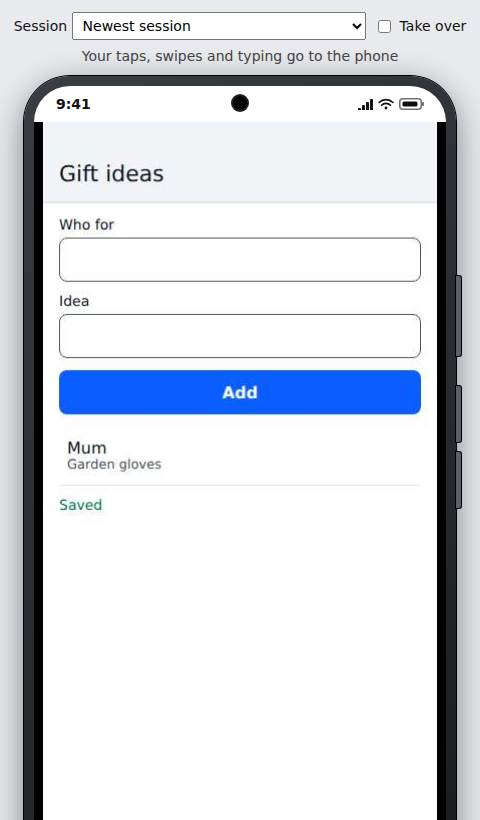
Every action in the app has a name, so the assistant can run it by name. Add two or three more ideas the same way.
If something goes wrong.
- The assistant says
action_failed: the app refused what it sent, for example because the "Who for" box was empty. Tell it to fill both boxes.
6. Ask for a change
Say:
Add an About screen with one line about what this app is for, and a button on the main screen to open it.The open screen changes at once. Look for two things: an About button under the list, and your ideas still in the list. Shipvo keeps what people typed when an app changes.
If something goes wrong.
- Your ideas are gone: they stay while the simulator runs. If you restart it, ask the assistant for the app again.
- The About button is missing: say "The About button is missing, please update the app again".
7. See the same app on iOS
Say:
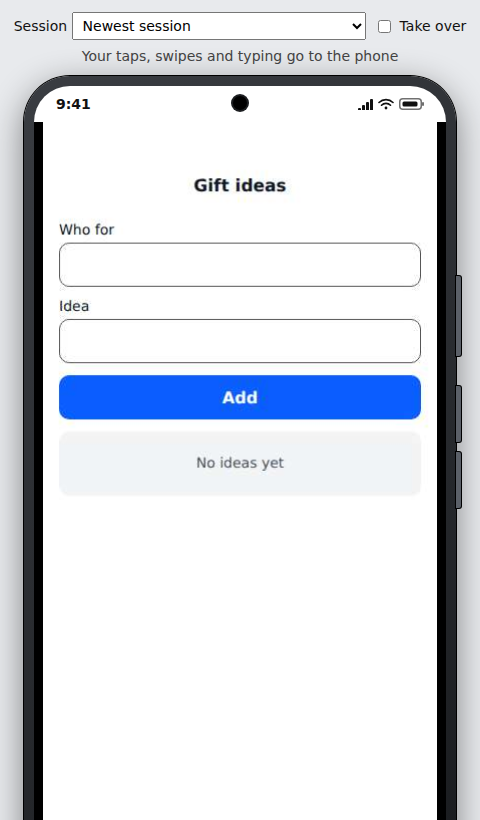
Make the same app again with the iOS look, with the id gift-ideas-ios and a different app id inside the spec.The app opens on an iOS phone with a centred bold title and softer boxes, the way an iPhone app looks. The same description gives you the Android app from step 4 and this iOS app.
When you are done, go to the first terminal window and press Ctrl+C to stop the simulator.
Recap
You started a simulated phone, connected an assistant, described an app in plain words and saw it appear on the phone. You used it, asked for a change that kept your entries, and made the iOS version from the same description.
Next steps
- Look at what the assistant can build: Spec blocks lists charts, boards, calendars, maps and more.
- Have the assistant test a shop before you ship it: Have an AI assistant test your shop.
- See your own React Native app on a phone in your browser: See your app on a phone.
- Every tool and option: Describe an app and it appears and Phone apps.