 Shipvo
You will type one command and get a phone, Android or iPhone style, in a browser tab, running your app. You will tap through your shop, look at the pretend Android system sheet, switch to the iPhone style and stop it again. You need no real phone, no Android Studio and no Xcode.
Level: beginner. Time: about 10 minutes to read and follow. On our test machine the first start took within a minute (see "What we measured" at the end).
New words are explained once, and collected in the glossary.
What you need
- Node, version 22 or newer, and a terminal (how to check).
- An app made with
shipvo init. If you have none, make the shop in Make a shop with your own products, steps 1 and 2, or run these three lines (the name afterinitis your app's folder):
npx -y @shipvo/cli init tidepool --template shop --name "Tidepool Shop"
cd tidepool
npm install- A web browser.
1. Start the phone
Make sure your terminal is inside your app's folder (the one with shipvo.json in it). Type this and press Enter:
npx shipvo run androidShipvo now builds a web copy of your app. This is called a build. The first one is the slowest because nothing is saved yet. You will see lines about "Metro Bundler", which is the tool that gathers your app's files. You do not need to read them.
When it is ready you should see a line like this:
Simulated Android phone at http://127.0.0.1:4600/ (Ctrl+C to stop)Your browser opens on that address by itself. If it does not, copy the address into your browser. The number can be different on your computer.
If something goes wrong.
- The terminal says
Port 4600 is in use: another program has that number. Typenpx shipvo run android --port 4700(any free number works).- It says it cannot build for web and names a file: that file uses something that only works on a real phone. Ask your assistant to fix that file.
- It mentions
@shipvo/sim: your app is older than this feature. Typenpm install --save-dev @shipvo/simand try again.- Nothing opens: open the address from the terminal in your browser yourself.
2. Look at your phone
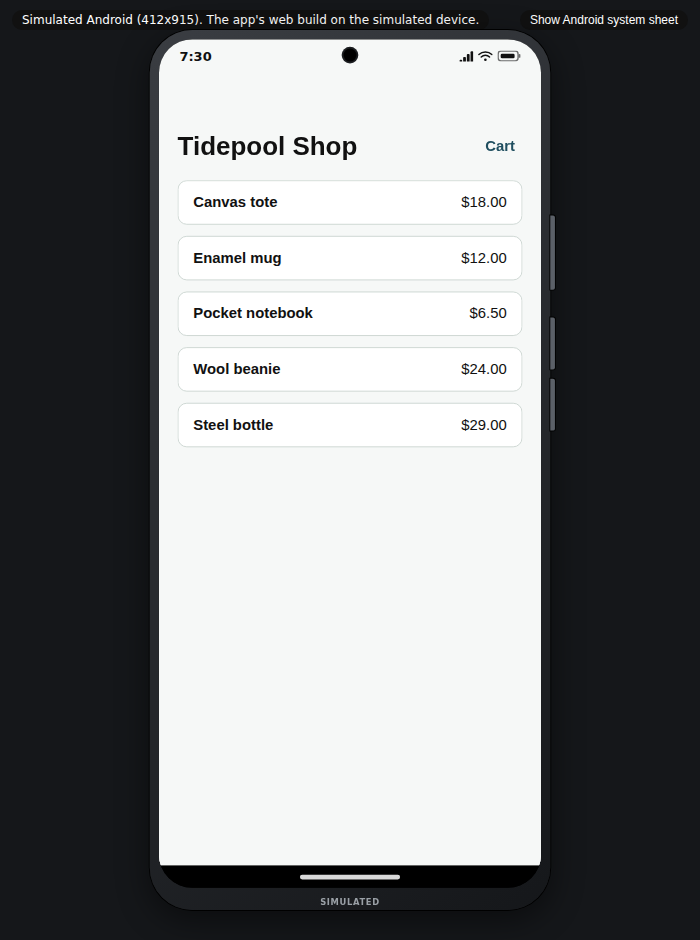
You should see a phone in the middle of the page. A small label at the bottom of the frame says SIMULATED, because this is a copy of a phone, not a real one. Your app is inside it.
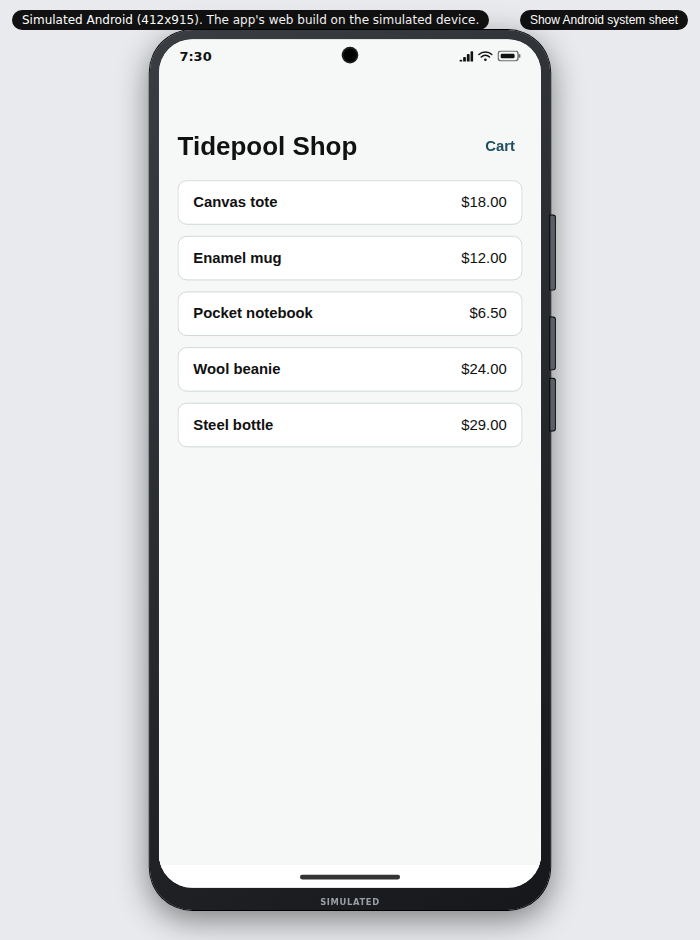
The page also has a label at the top left that gives the phone size (412 by 915 on Android) and a button at the top right that says Show Android system sheet. You will use it in step 4.
3. Tap through your shop
Click works like a tap. Do these in the phone:
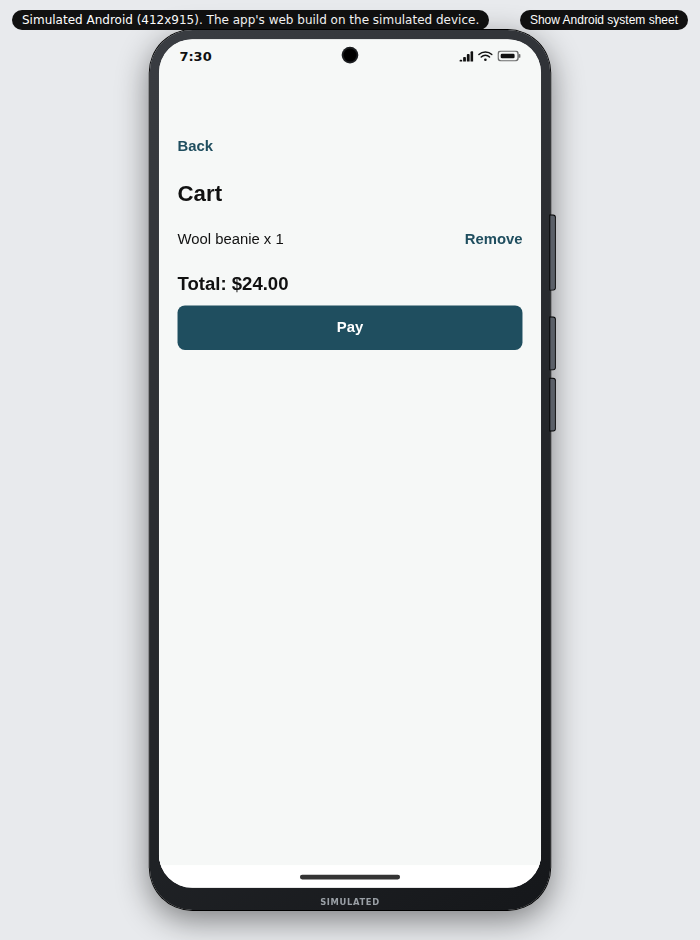
- Click Wool beanie. You should see its name, its price and the words "A warm hat in undyed wool."
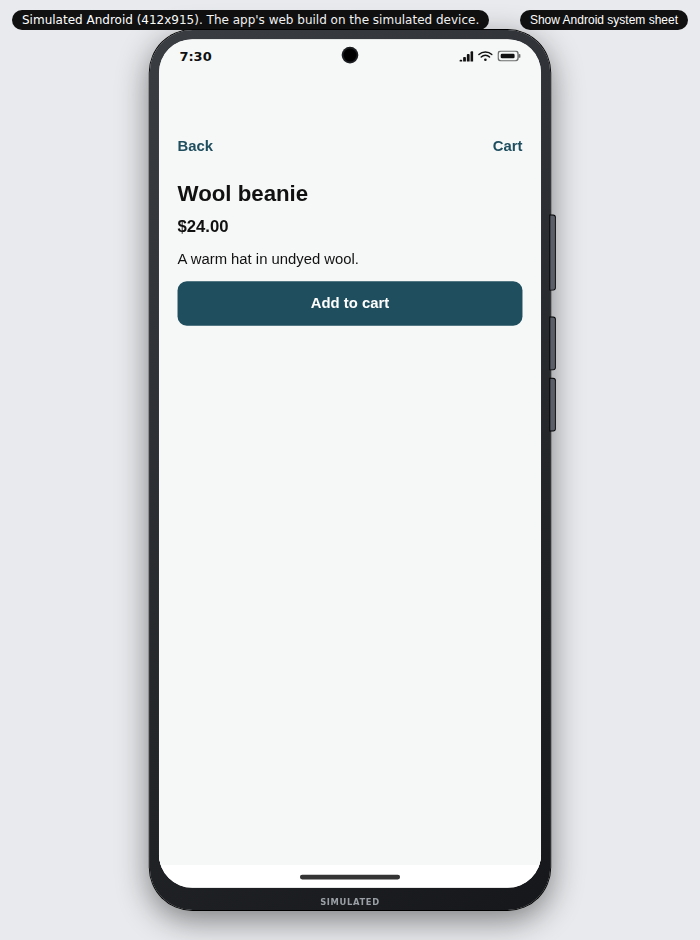
- Click Add to cart, then Back, then Cart. You should see "Wool beanie x 1", "Total: $24.00" and a Pay button.
Below is a live phone with the finished Tide & Tackle sample shop, so you can try the same moves now. It is not your app.
The live phone could not load. Here is a screenshot instead.
If something goes wrong. A click does nothing: wait two seconds and click again. The page is a copy of your app, and the first click can arrive while it is still loading. If the phone stays blank, reload the browser tab.
4. See the system sheet
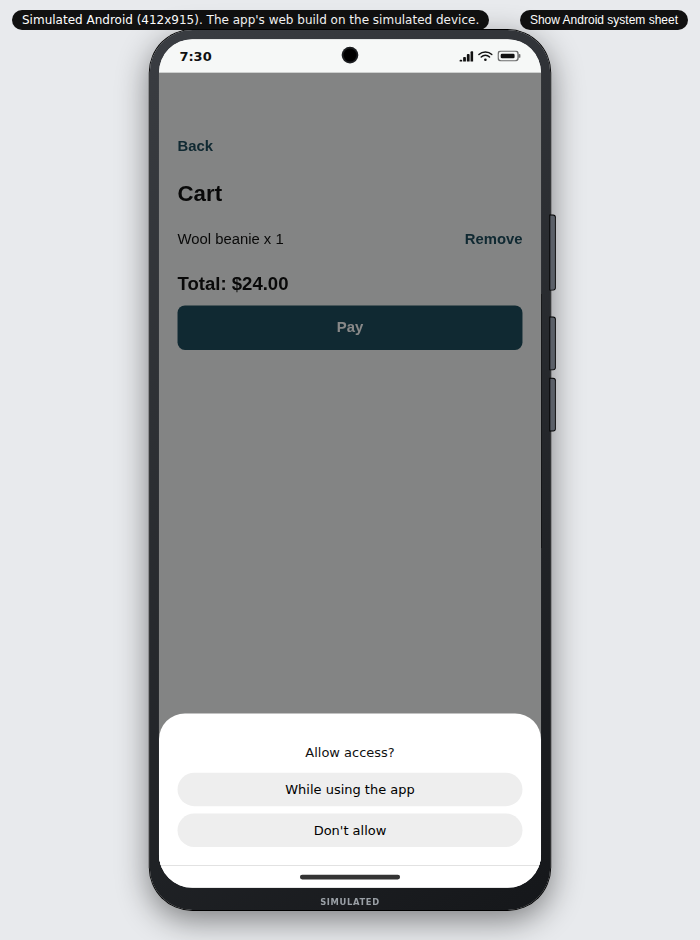
On a real phone, some questions come from the phone itself, not from your app. An example is "Allow access?" when an app asks for your location. The simulated phone can show this too, so you can see how your app looks while it is covered.
Click Show Android system sheet at the top right of the page. You should see the screen go grey and a white sheet rise from the bottom with the question Allow access? and two buttons, While using the app and Don't allow. Click one to close it.
5. Try the iPhone style and dark frame
Go back to the terminal and press Ctrl+C to stop the phone. The terminal gives your prompt back. Now type:
npx shipvo run iosThe phone is now an iPhone style (393 by 852), with a Dynamic Island at the top and a home bar at the bottom.
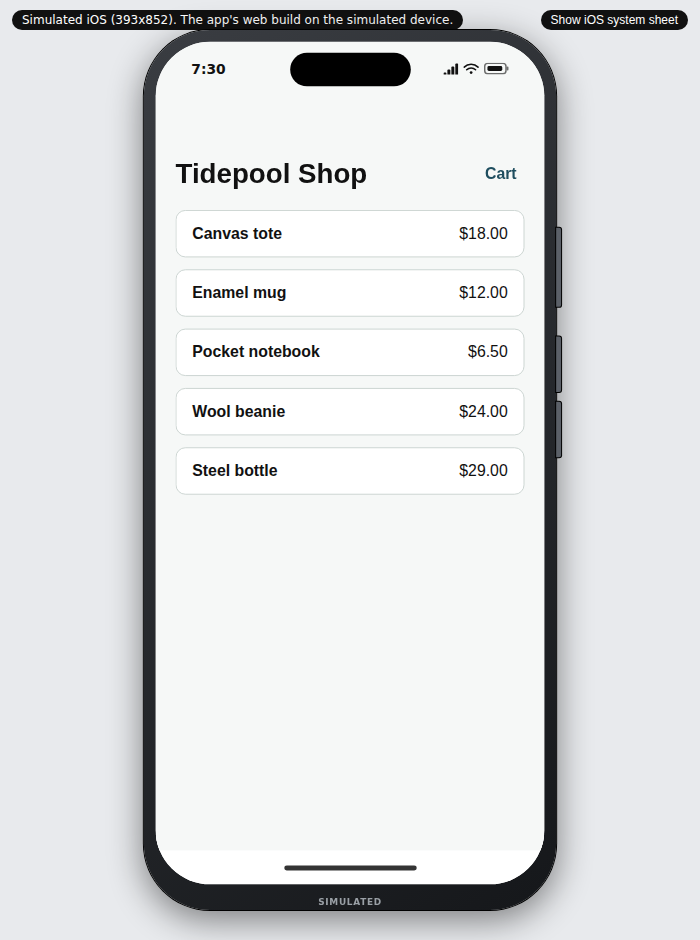
To see the dark frame, add ?dark=1 to the end of the address in your browser, so it looks like http://127.0.0.1:4600/?dark=1. The frame and the page behind it turn dark. Your app keeps its own colours.
Want a different size? The page scales the phone to fit your browser window, so make the window smaller or larger.
6. Stop the phone
Go to the terminal and press Ctrl+C. The page stops answering. Your files are not changed. Nothing was sent to anyone.
What happens to your files
While the phone is on, Shipvo writes a small file called .shipvo/run.json in your app folder. It holds the port, the phone type and a secret code that only your computer can use. Shipvo also adds .shipvo/ to .gitignore, so it does not get shared by accident.
Recap
You ran your app on a simulated phone in your browser with one command, tapped through the shop, saw the system sheet, switched to the iPhone style and stopped it. You used no real phone and no account.
When you save a change to your app while the phone is on, the phone reloads by itself. See Change your app and watch the phone update as you save.
What we measured
On 2026-11-06, on a GitHub Actions Linux runner with Node 22.23, a first start of shipvo run android for a new shop app, with an empty cache, bundled 204 modules in 6.0 s and was serving the phone within the 60 seconds we waited. We did not time it more closely than that. A start-to-tappable timing on a clean machine is tracked in issue #676. We took every screenshot in this tutorial from that run.